Plans and Services
Devices and Accessories

Plans and Services
Devices and Accessories
Apparel
Accessories
Lets connect
Self service

Wisephone II now requires an active WiseOS subscription to continue using the complete WiseOS experience. If you do not plan to continue with WiseOS, you may need to factory reset your device before transitioning away from the Wisephone experience.
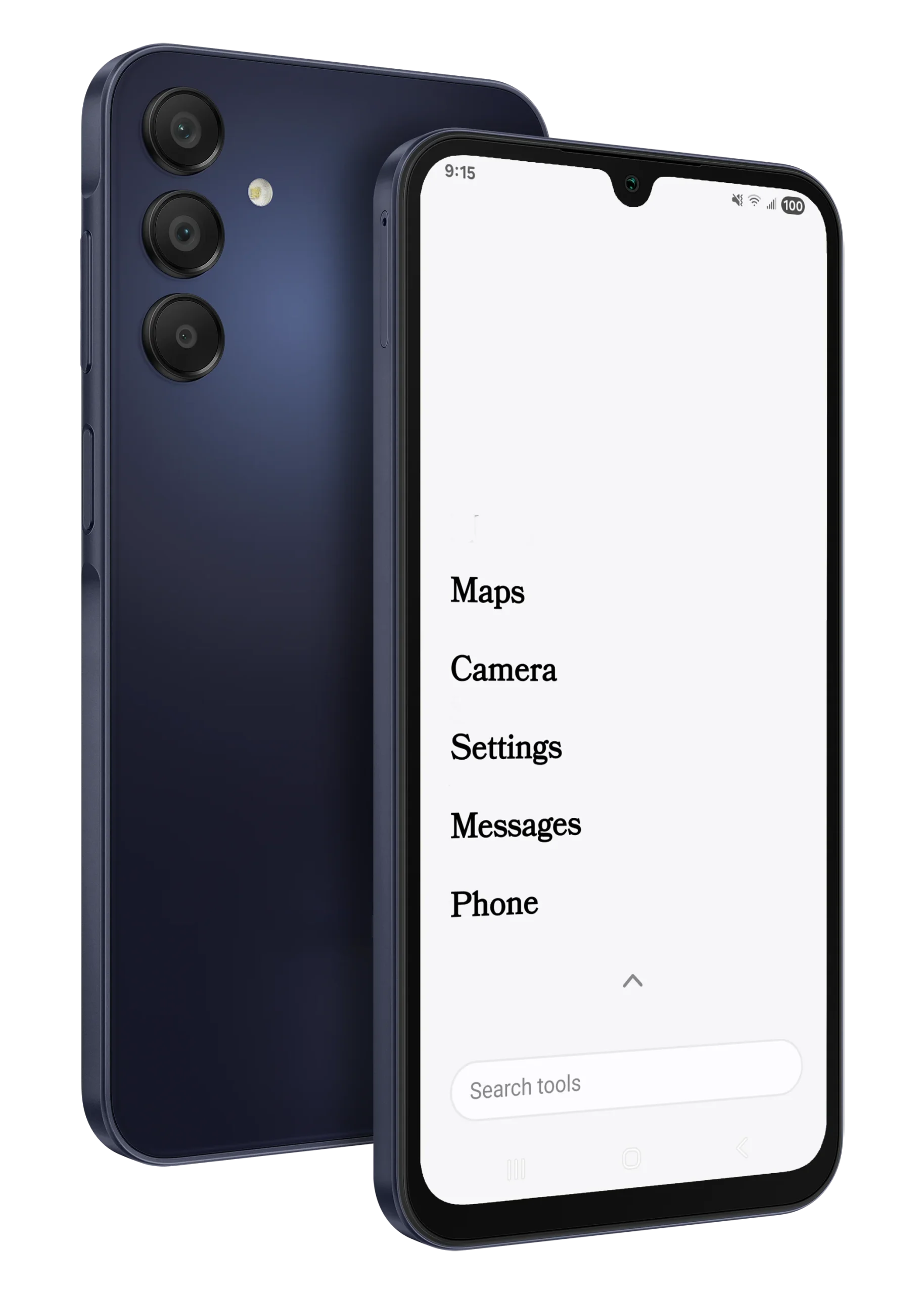
WiseOS is the software that creates the familiar Wisephone experience, including its simplified interface, device management features and supported tools.
Continuing to use the full WiseOS experience requires an active WiseOS subscription.
Members who want to continue using WiseOS can activate their subscription during Wisephone setup or through Wisephone.
A factory reset permanently removes data stored on the device, including photos, messages, downloaded files, settings and other personal information. Back up anything you want to keep before beginning the reset.
If you know your phone's passcode, follow these steps directly from your Wisephone II.
From your Wisephone home screen, open Settings.
Inside Wisephone Settings, select Open System Settings.
Scroll through the system settings and tap General Management.
Tap Reset to view the available reset options.
Choose Factory Data Reset. Review the information shown on your phone before continuing.
Tap Reset and confirm when prompted. Your Wisephone II will erase the device and restart.
Once the Wisephone restarts, the phone will return to its initial setup screen.
If you cannot access Settings, the Wisephone II can be reset through the Android Recovery menu.
Press and hold Volume Up + Volume Down + Power until the screen goes black or the phone vibrates.
Release only the Volume Down button. Continue holding Volume Up + Power.
Once the Android Recovery menu appears, release the remaining buttons.
Use the volume buttons to highlight Wipe data/factory reset and press the Power button to select it.
Highlight Factory data reset and press the Power button again.
After the reset finishes, select Reboot system now.
If you have trouble resetting your Wisephone II or have questions about your Patriot Mobile service, contact Member Services.